
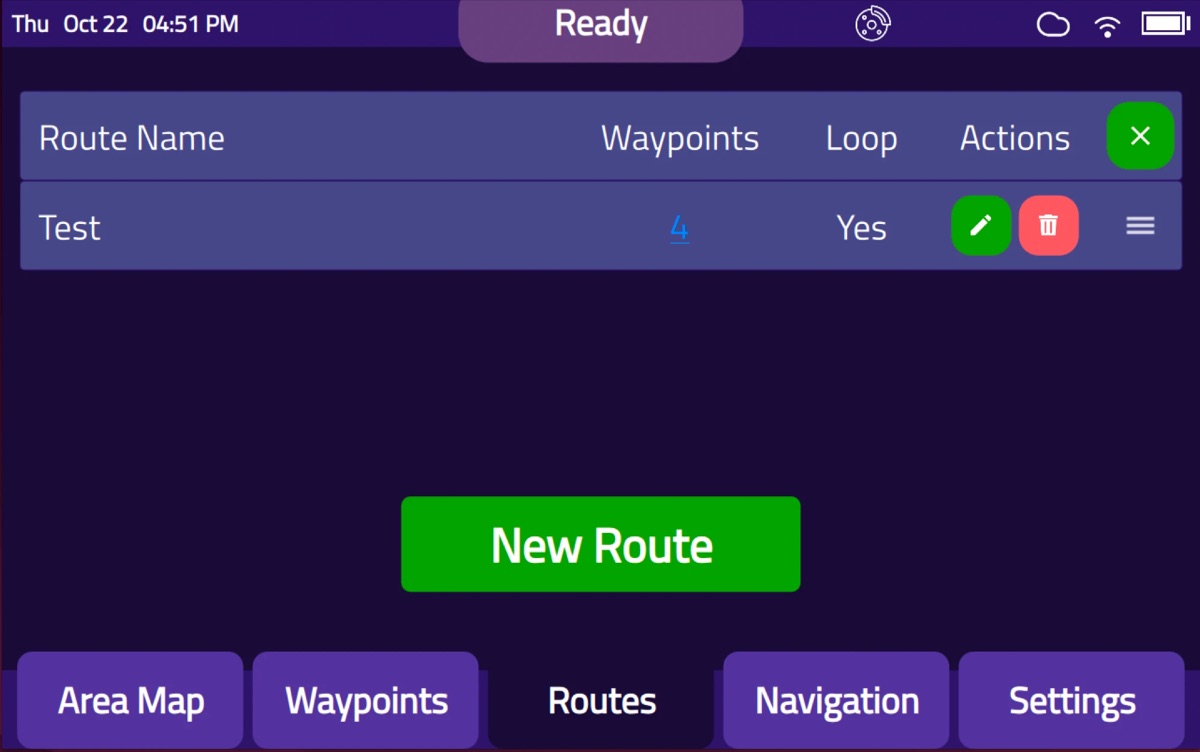
Multi-stop routes
Chain Waypoints into a route and loop it if you like. At each stop, C2 waits for a set time, waits for someone to tap Continue, or passes straight through.
Wireless docking & charging is now available for Model C2 Large, PartPorter, and Heavy. Learn more
Setup
No integrator, no IT project, no floor markers. Unbox Model C2, guide it around once, name your stops, and send the first delivery. That’s how almost every customer gets started.
From shipping crate to live transport in about 45 minutes. Watch the full video with sound (opens YouTube in a new tab)
Four steps
Everything happens on the onboard touchscreen. If you can use a tablet, you can deploy a Model C2.
1Tap
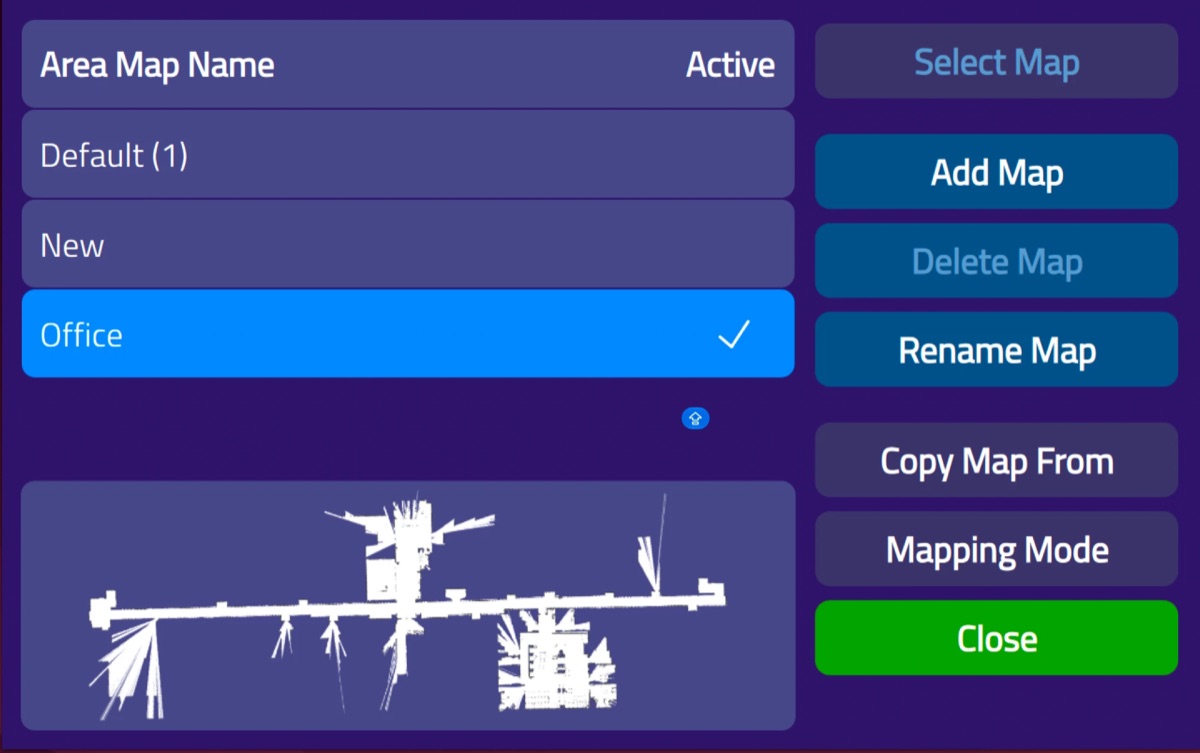
Press the power button at the base of the cart. Model C2 starts up in about two minutes and opens Mapping Mode on the touchscreen.
Lift C2 out of its crate with two people, by the metal frame posts.
2Map
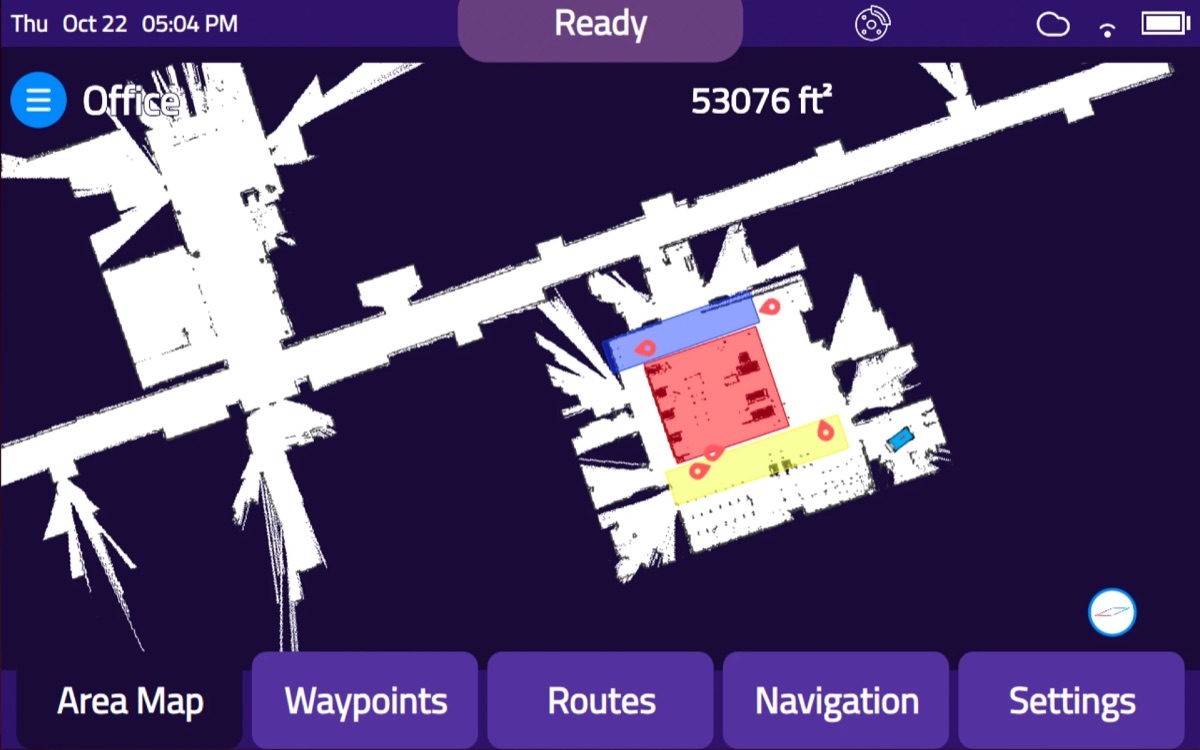
Walk C2 by its handle through the areas it will serve. The map of your facility builds on the screen as you go.
Map when the area is quiet: people walking through are recorded as obstacles.
3Deploy
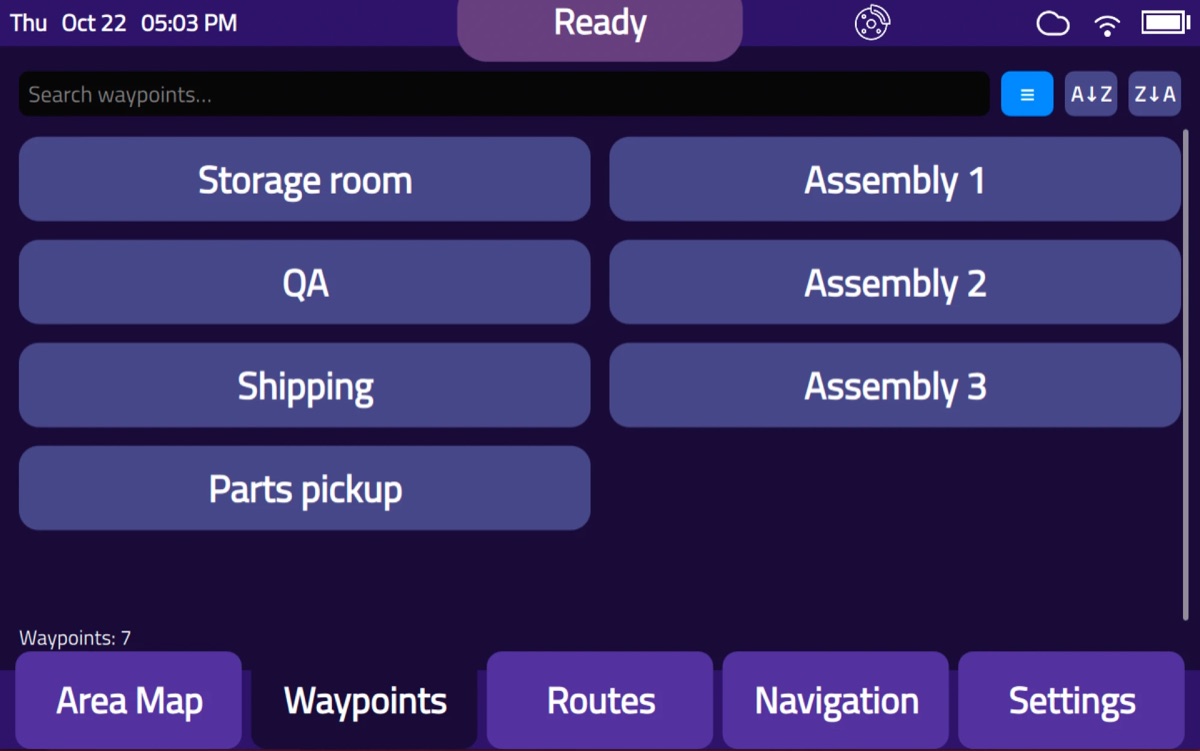
Push C2 to each stop and give it a name, like Storage room or Assembly 1. Then tap a Waypoint and press OK.
Waypoints can be added, renamed, or moved at any time.
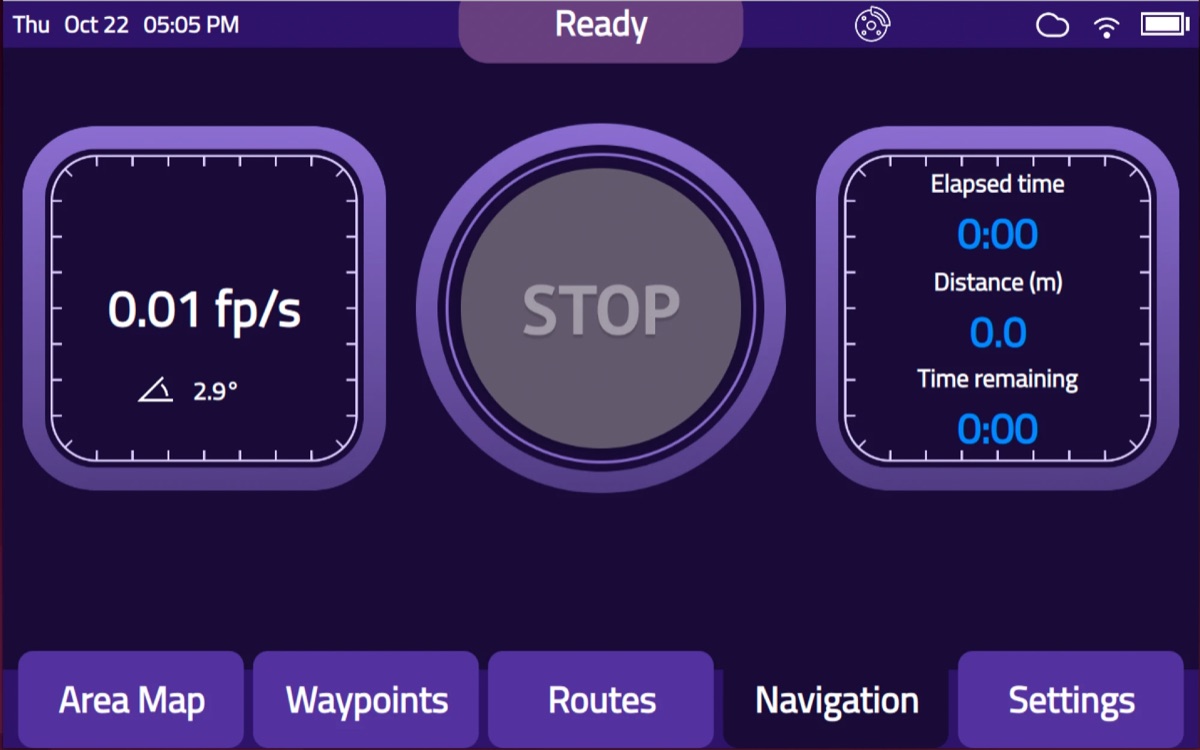
4Done
C2 drives to the stop on its own. The screen shows its speed, the distance covered, and the time remaining, with a stop button always in reach.
Plug the charger into a standard wall outlet when the day is done.
When you’re ready
Build them on the touchscreen any time, or in Cloud Connect®. They stay in sync either way.
Chain Waypoints into a route and loop it if you like. At each stop, C2 waits for a set time, waits for someone to tap Continue, or passes straight through.
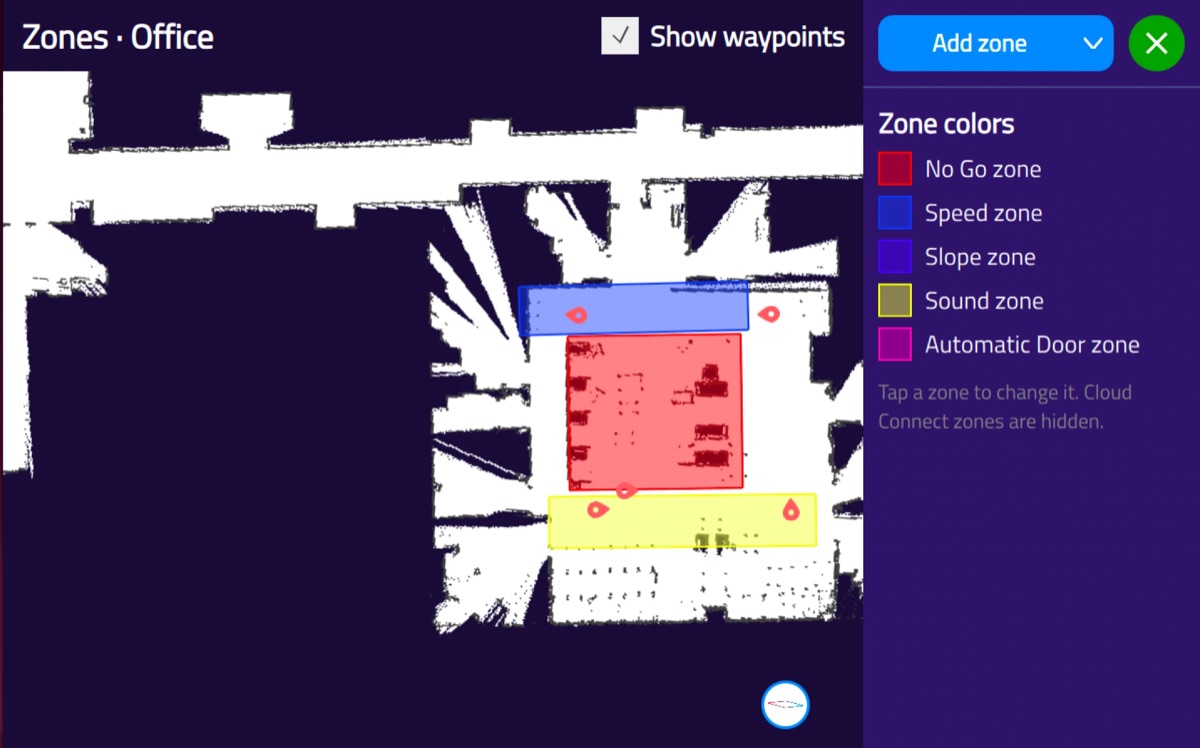
Draw no-go, speed, slope, sound, and automatic door zones on the map, so C2 knows where to stay out, slow down, or announce itself.
More about the touchscreen, the app, and Cloud Connect on Software & app.
Before you start
Help when you want it
The Quick Start Guide covers everything. If you do get stuck, our team is a call away.
Step-by-step setup, in the box with every cart.
Watch setup, mapping, and daily use.
Watch the videosAnswers and troubleshooting, any time.
Visit SupportQuestions during setup? Our team helps by e-mail or video call, at no cost.
Contact supportIn real facilities
For automatic doors and elevators, several floors or buildings, business-system integration, or on-site training, our engineers offer deployment services, quoted per project.
Book a demo and we’ll walk through setup with your own layout and stops.